Select a
contact from the list, or create a new one
Record Entry
Activity log
Client Engagement
Intelligence
History & Demonstrations
Event Type
Date
Engagement
Followup Status
Tactical Rescue Expo
March 12, 2024
HIGH
Catalog Dispatched
London Safety Summit
Feb 28, 2024
NEUTRAL
Awaiting Callback
Demonstration: VR Gen 2
Jan 14, 2024
ELITE
Agreement Signed
Client Training Portfolio
Tactical Recovery v4
Portsmouth Training Ctr
8 Attended0 Missed
Lorry Extraction Lab
Manchester Depot
2 Attended6 No-Show
Social Outreach
Broadcast
Synchronized
multi-channel event push
Facebook
X Broadcast
TikTok
YouTube
Local Ads
Global Strategic Alignment Roadmap
Active Pin
Legends
Past Engagement
Future Planning
Site Recovery hub
Total Deployments
412
Interactive Staging Environment
ContactQ help
Step-by-step guide for
contacts, suppliers, addresses & delete
Open this guide any time from the header Help button. Use the diagrams below as you
work through Shared / Suppliers / Imports and the contact editor.
1. Find people & start a new contact
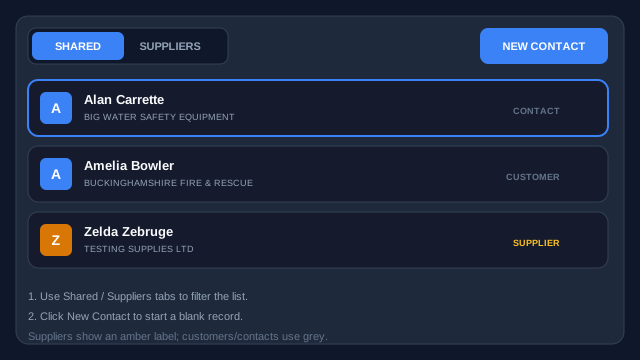
Use the directory list on the left. Shared shows customers and general contacts.
Suppliers shows supplier records only. Open header Admin →
Imports to upload a CSV or Excel sheet, pick a batch, or view imported contacts in
the directory. Map columns (especially address1–4 / postcode), scan for duplicates, review in the
split preview, then commit. Unreviewed imports show a light-blue avatar and an
Imported label — open the record and click Mark reviewed when
checked. Use Check duplicates (yellow button above the list) to scan the live
directory and merge matching records; use Admin → Imports → Rollback to undo a whole
upload.
Click New Contact to open a blank form.
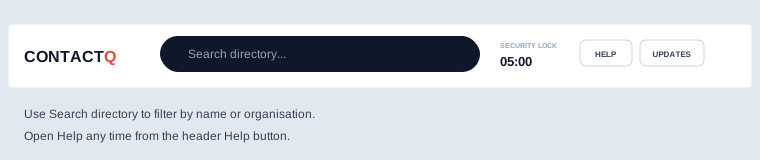
Shared / Suppliers filter the list. Admin holds imports and deleted contacts.Search directory filters by name or organisation. Help opens this guide.
2. Enter master identity
Click New Contact (or select someone and click Edit).
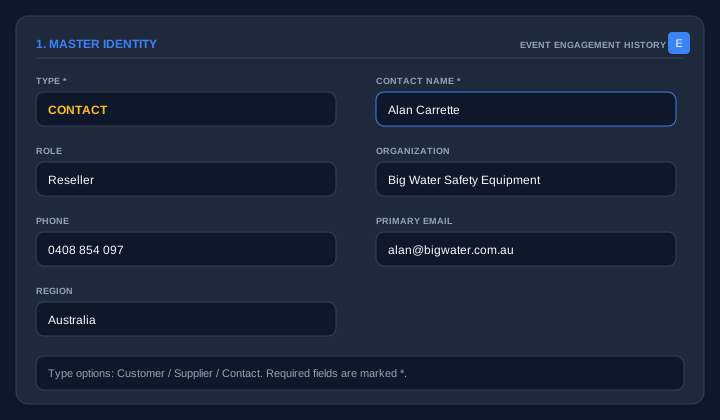
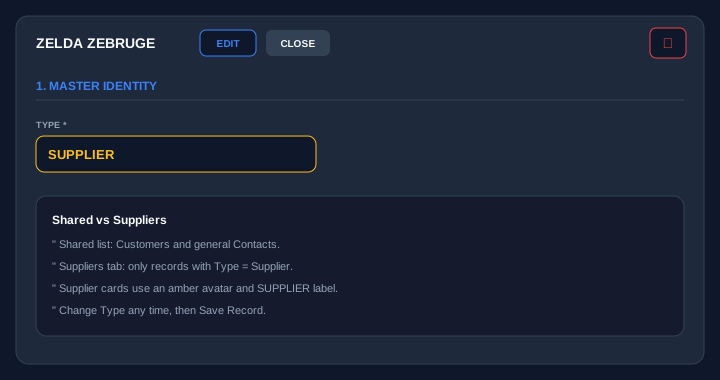
Set Type — Customer, Supplier, or Contact (required).
Enter Contact Name (required), then role, organisation, optional
Account code (for accounts packages — not used for merge), phone, email, and
region.
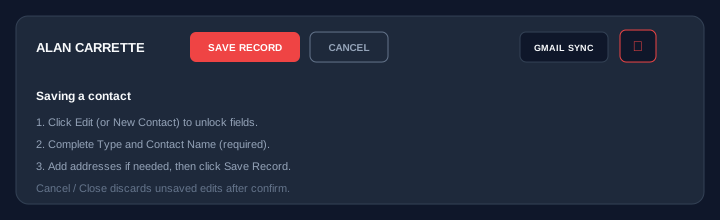
Click Save Record when ready (you can add addresses first).
Section 1 — Master Identity. Required fields are marked *.Save Record stores the contact. Cancel / Close asks before discarding unsaved edits.
3. Shared vs Supplier
Customer / Contact — appear under Shared.
Supplier — appear under the Suppliers tab, with an amber avatar and label.
Changing Type and saving moves the record between those views.
Set Type to Supplier for vendor records. The red trash icon soft-deletes the whole
contact.
4. Multiple addresses
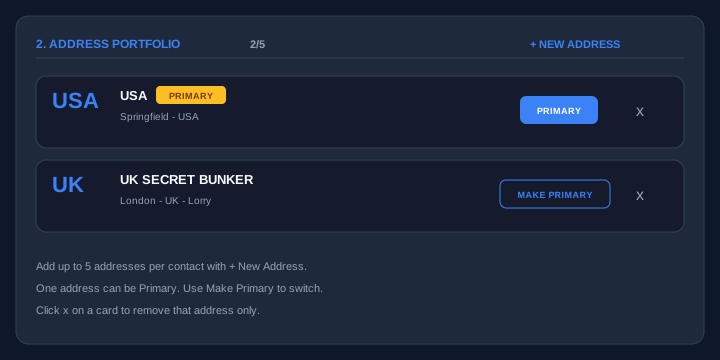
In 2. Address Portfolio, click + New Address (up to 5).
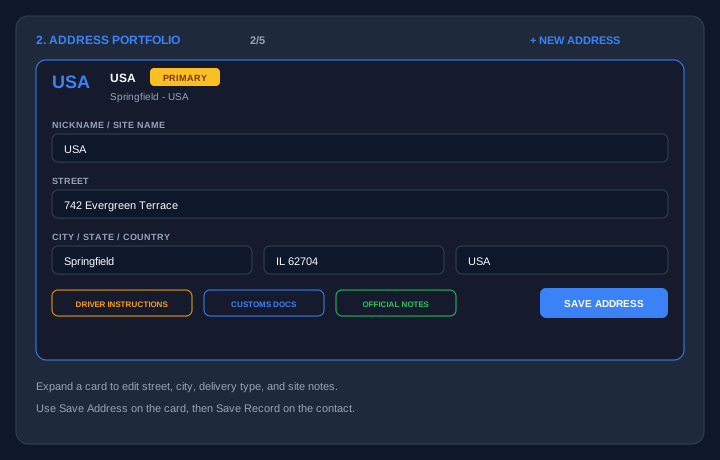
Expand a card to enter street, city, postcode, country, delivery type, and site notes.
Use instruction chips for driver notes, customs docs, or official notes as needed.
Click Save Address on the card, then Save Record on the
contact.
Mark one address as Primary. Use Make Primary to switch.
Click × on a card to remove that address only.
Collapsed address cards — Primary badge and Make Primary / remove actions.Expanded address: full site details and Save Address.
5. Delete, restore & permanent delete
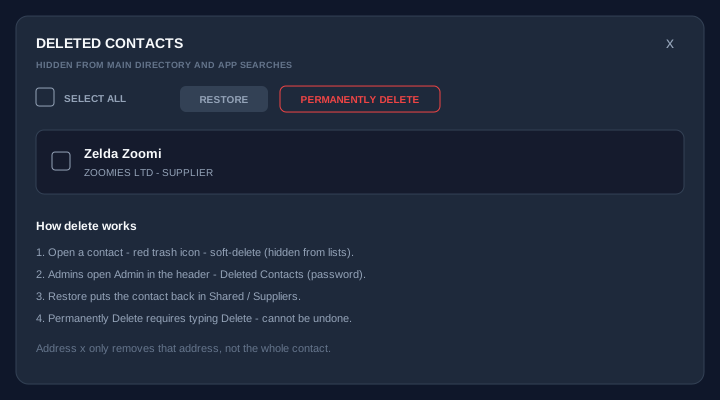
Open a contact → red trash icon → confirms and soft-deletes (hidden from lists
and search).
Admins: header Admin → Deleted contacts tab → unlock with the
password.
Restore returns selected contacts to the directory.
Permanently delete requires typing Delete — this cannot be undone.
Admin panel: Imports tab for uploads and batches; Deleted contacts for restore or purge.
6. Updates
When a new site version is published, a banner appears at the top. Click Reload now
after saving any open edits. You can also use the header Updates button to check
manually.
Admin
Imports & deleted
contacts
Upload a
CSV or Excel file, map columns, scan for duplicates, then commit. Use the directory list to review
imported records.
Enter password to restore or
permanently delete
Incorrect
password
No
deleted contacts
Gmail Sync
Authorize Access
--
Import contacts
CSV / Excel file upload · map · review · commit
Column mapping
Match each file column to a ContactQ field. Map Address 1 to street, Address 2–3 to address line 2, Address 4 for city/town, and Postcode for the postcode. Fix any wrong values on the next screen.
Row review
Import source
Destination
Rows to review (click to open)
Review 1 / 22
1 / 111
Check duplicates
Scan live directory · pick keeper · merge
Click Scan to check for duplicates.
No duplicate groups found
or tap a record to keep
Skip to leave separate · Tap a side to merge into that record